
Setup guide for Ketch
This public guide covers how to install, connect, configure, use, disconnect, and uninstall the Ketch app on HubSpot.
What the app does
Ketch connects website consent to HubSpot so marketing and compliance teams can see privacy choices in CRM and deploy a consent experience on HubSpot CMS.
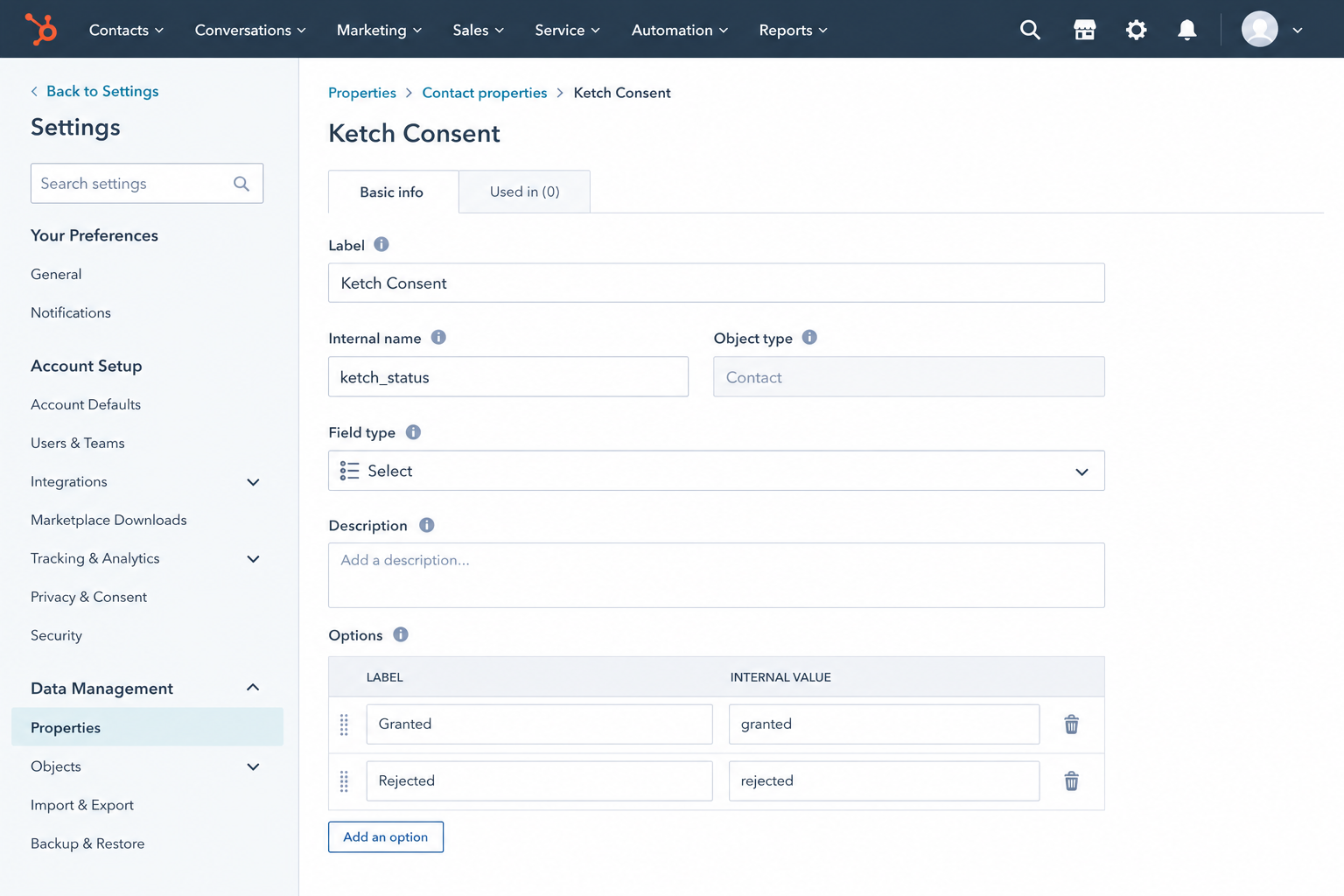
- On install, the app creates a Ketch Consent contact property with values Granted and Rejected.
- You save your Ketch JavaScript (boot script) URL for your HubSpot portal. If you do not have a Ketch JavaScript URL yet, sign up at app.ketch.com to create a property and copy the boot script.
- The Ketch Consent Tag CMS module loads that script on your site and adds a “Your privacy choices” link (with California-specific labeling where applicable).
Consent data is written to HubSpot (sync to HubSpot). The app does not pull contact records from HubSpot into Ketch.
How to install the app and connect a HubSpot account
Installation uses HubSpot OAuth only. There is no separate Ketch sign-in step during install.
You need a HubSpot user who can install apps, plus a Ketch account if you will add the website consent tag.
Step 1. Start install
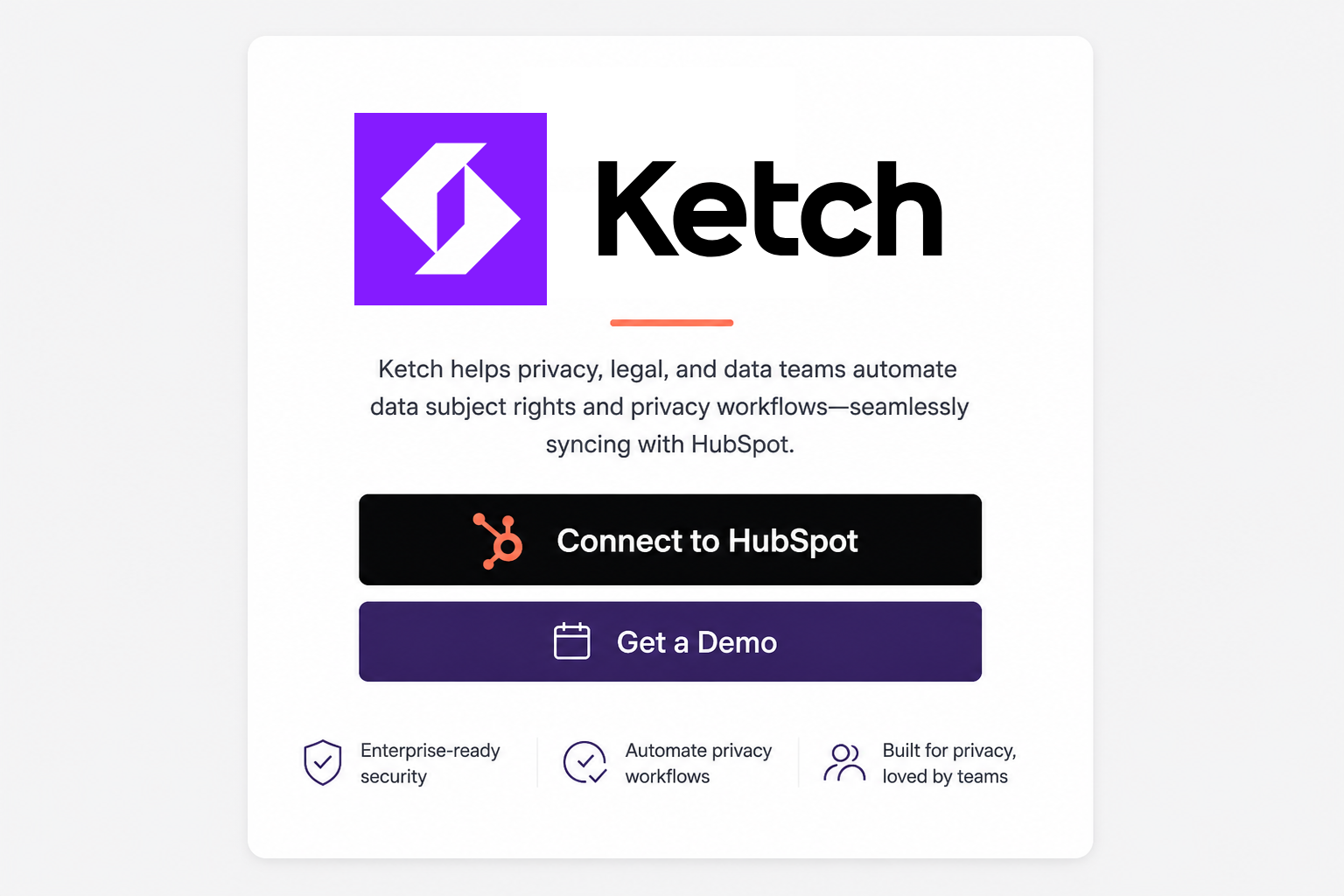
- Open the Ketch listing in the HubSpot Marketplace, or go to https://hs.ketchd.net/install.
- Click Connect to HubSpot (or Install from the Marketplace).
Step 2. Choose the HubSpot account
- If you belong to more than one HubSpot account, select the production account to connect.
- Click Choose Account.
Choose an account
Select the HubSpot account where Ketch should be installed, then continue.
Step 3. Review scopes and connect
Ketch requests only the scopes it needs:
Ketch is requesting access to your HubSpot account
oauth— complete OAuth authorizationcrm.objects.contacts.read— view contactscrm.objects.contacts.write— update contactscrm.schemas.contacts.write— create the Ketch Consent contact property
- Review the requested access.
- Click Connect app.
- HubSpot redirects you to
https://hs.ketchd.net/oauth-callback, then to the in-app setup page.
A video walkthrough is available:

How to configure the app after install
After a successful install, open https://hs.ketchd.net/instructions while signed in through the OAuth session, or follow the same steps below.
- Confirm the Ketch Consent property exists: in HubSpot go to Settings → Data Management → Properties → Contact properties and search for Ketch Consent (
ketch_status). Values are Granted and Rejected. - Sign in at app.ketch.com, or if you do not have an account yet, sign up here. Then open (or create) your web property.
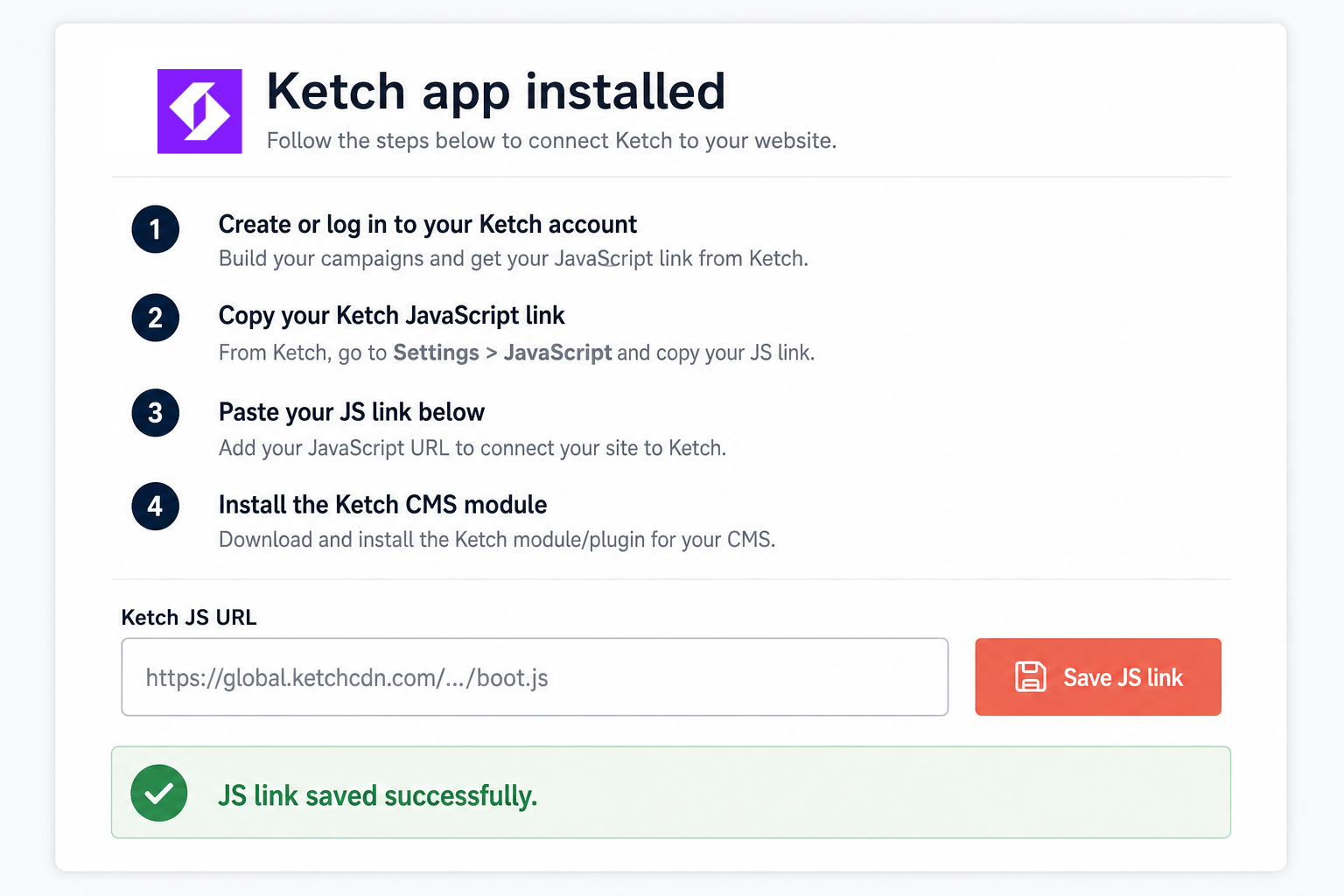
- Copy the Ketch JavaScript / boot script URL (HTTPS, typically
https://global.ketchcdn.com/.../boot.js). - On the Ketch setup page, paste it into Ketch JS URL and click Save JS link. Only HTTPS URLs are accepted.
- Install the Ketch Consent Tag module from the HubSpot Marketplace (if you use HubSpot CMS).
- In the module, keep Settings API Base URL as
https://hs.ketchd.netunless Ketch support tells you otherwise. - Add the module globally (or to the header/footer of the pages where consent should run), then publish.
How to use the app
Automated
- On install, Ketch creates the Ketch Consent contact property if it does not already exist.
- The CMS module requests
/public/js-link?hub_id=YOUR_PORTAL_IDfromhttps://hs.ketchd.netand injects the saved boot script. - The module adds a “Your privacy choices” control. For California visitors it can show “Do Not Sell My Personal Information”.
Manual
- Update the saved JS URL anytime from the post-install setup page.
- View or use Ketch Consent on contact records, lists, and workflows in HubSpot.
- Place or remove the Ketch Consent Tag module on HubSpot CMS pages.
How to disconnect a HubSpot account
This integration does not use a separate partner sign-in. Disconnecting is the same as uninstalling the app from HubSpot (see below). After disconnect, Ketch cannot call HubSpot APIs for that account and cannot update the Ketch Consent property.
How to uninstall the app from a HubSpot account
Follow HubSpot’s standard uninstall steps in Uninstall an app:
- In HubSpot, go to Settings → Integrations → Connected Apps.
- Find Ketch.
- Click Actions → Uninstall and confirm.
Potential consequences to user data
Disconnect or uninstall does not delete HubSpot CRM data. The Ketch Consent property and any values already stored on contacts remain in HubSpot until you delete them yourself.
- Ketch will no longer create or update contact properties through this app.
- The saved JS URL for that portal may remain in Ketch’s configuration store until you ask support to remove it.
- If the Ketch Consent Tag module is still on your site, it may continue to request the saved script URL. Remove the module from your theme or pages if you want the tag gone.
- Uninstalling does not delete contacts, lists, or other HubSpot records.
Support
- Email: support@ketch.com
- Web: https://ketch.com/support
- Phone: +1 415 737 6489
This page is the setup documentation for the Ketch HubSpot Marketplace app. CMS module docs: Ketch Consent Tag module setup. Listing URL: https://hs.ketchd.net/setup-guide